Guide
Get Instagram ready for Evolamate
Instagram doesn't let any tool post to a personal account — that's Meta's rule, not ours. Publishing works through a Facebook Page and the Instagram business account linked to that Page. So there are two jobs here: turn your Instagram into a business account, then link it to your Page. About ten minutes, done once, and you never touch it again.
Your Instagram and Facebook logins do not have to match. The link between the account and the Page is the only thing that matters.
About the screenshots
These are real screens from our own Facebook Page and Instagram account — we used a live setup rather than mock-ups so you can see exactly what to expect. Wherever the pictures show the Evolamate name, logo, handle or bio, you should be looking at your own business instead.
Nothing in the pictures needs to be copied. Don't create anything called Evolamate and don't reuse our names, categories or descriptions — follow the path through each screen and use what is already yours.
Part 1 — Switch Instagram to a business account
These screens are from instagram.com on a laptop. The Instagram app has the same options under the same names if you prefer your phone. Nothing is deleted and your followers, posts and username all stay exactly as they are — you can switch back at any time.
- 1
Open Settings
Go to instagram.com and log in with the account you want Evolamate to post to. In the left sidebar click More (at the bottom), then Settings.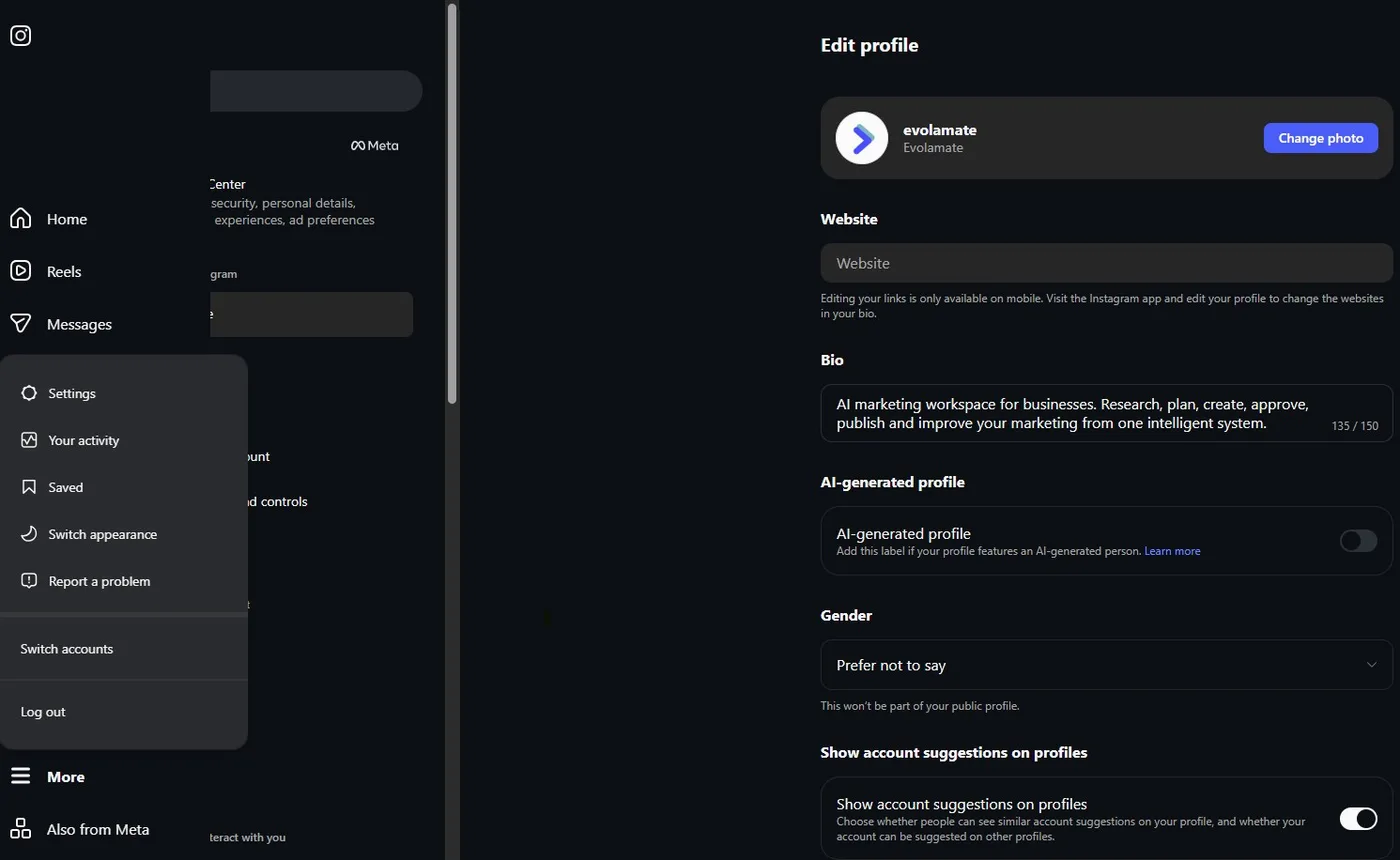
Left sidebar → More → Settings. The profile shown is our own demo account — yours will show your own handle and bio. - 2
Find Account type and tools
The settings list is long. Scroll it down to the For professionals heading and click Account type and tools. On the right, click Switch to professional account.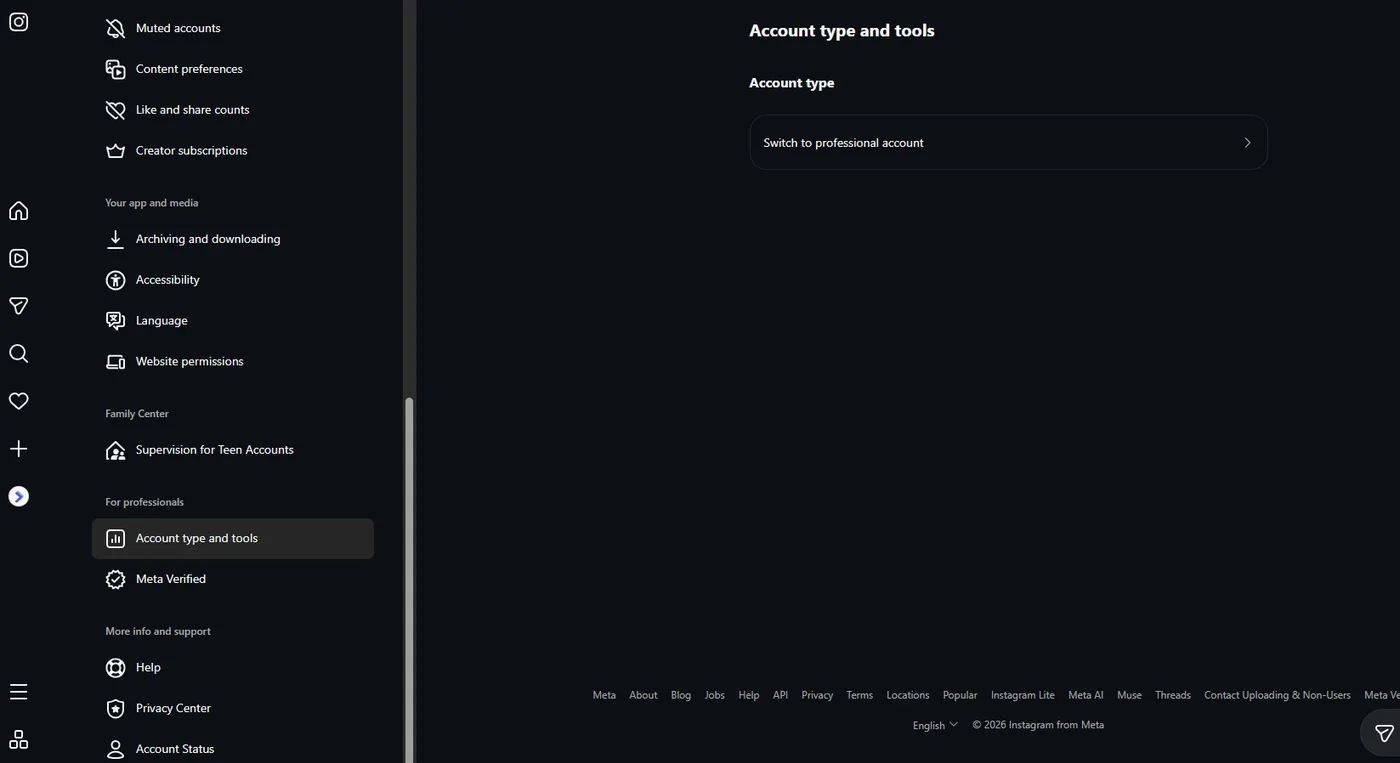
For professionals → Account type and tools → Switch to professional account. - 3
Choose Business, not Creator
Instagram asks you to pick a category, then Which best describes you? Choose Business and press Next.Creator is built for individual public figures and influencers. Business is the account type Evolamate is tested against — it's what gives you the Page link, insights and messaging that automatic publishing depends on. If you're a business, choose Business.
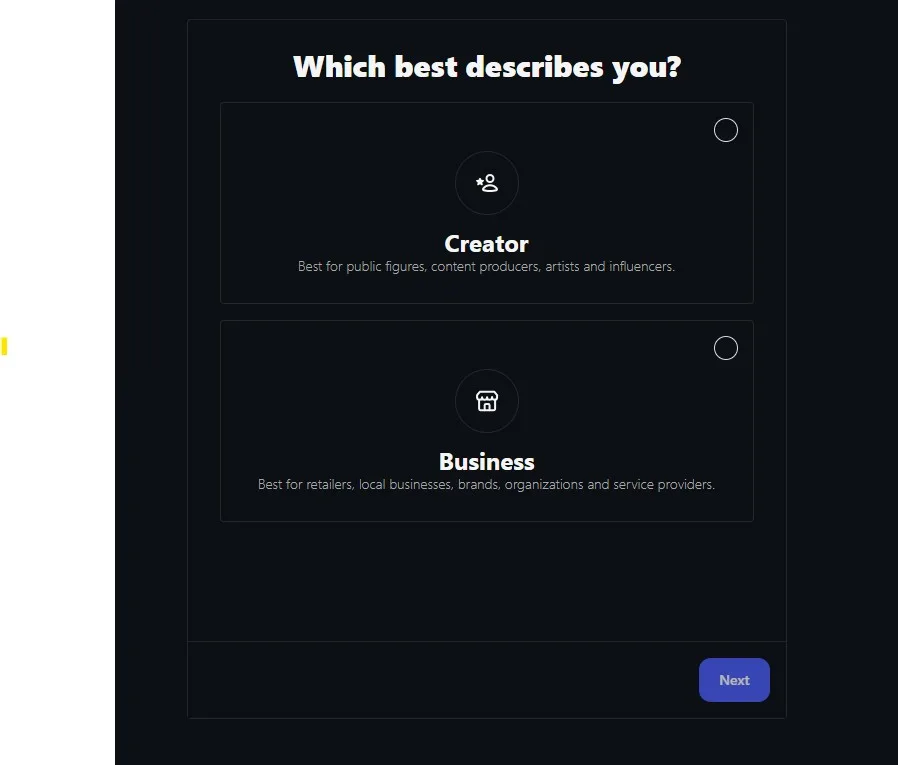
Pick Business — the option for retailers, local businesses, brands and service providers. - 4
If Instagram offers to connect a Facebook Page, say yes
Some accounts get offered the Page link during this switch. If you see it, pick your business Page and you've just finished Part 2 as well — jump ahead and use Part 2 to check the link took. If you don't see it, that's completely normal; carry on below.
Part 2 — Link that account to your Facebook Page
Now back to Facebook. This is the step that actually lets Evolamate publish.
Switch into your Page first. On facebook.com, click your profile photo → See all profiles → choose your business Page. Doing the next steps from your personal profile links Instagram to you, not to your Page, and Evolamate can't publish through that. The screenshot below is taken while switched into the Page — notice the business name at the top of the menu.
- 1
Open Settings & privacy
With your Page selected, click the profile photo in the top-right corner and choose Settings & privacy, then Settings.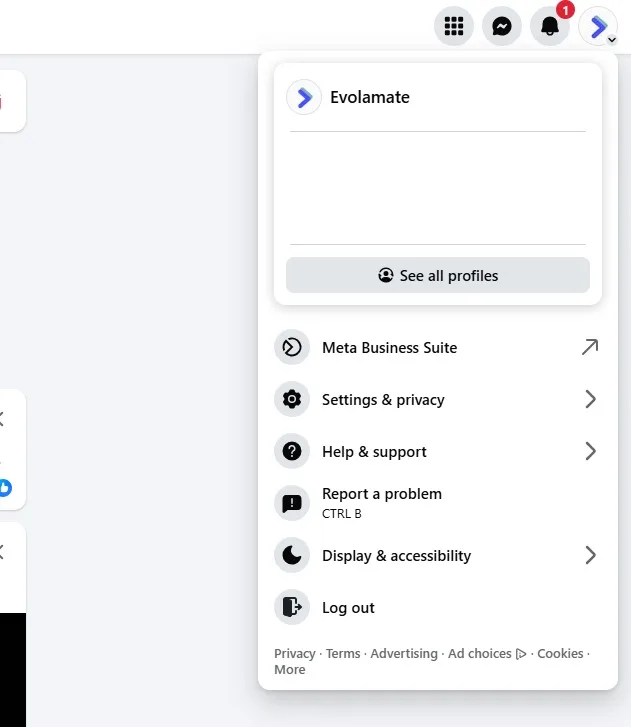
Profile photo → Settings & privacy → Settings. The name at the top of the menu confirms which profile you are in — it reads Evolamate here because this is our demo Page; yours must read your own business name. - 2
Go to Linked accounts
In the left column, scroll to the Permissions section and click Linked accounts.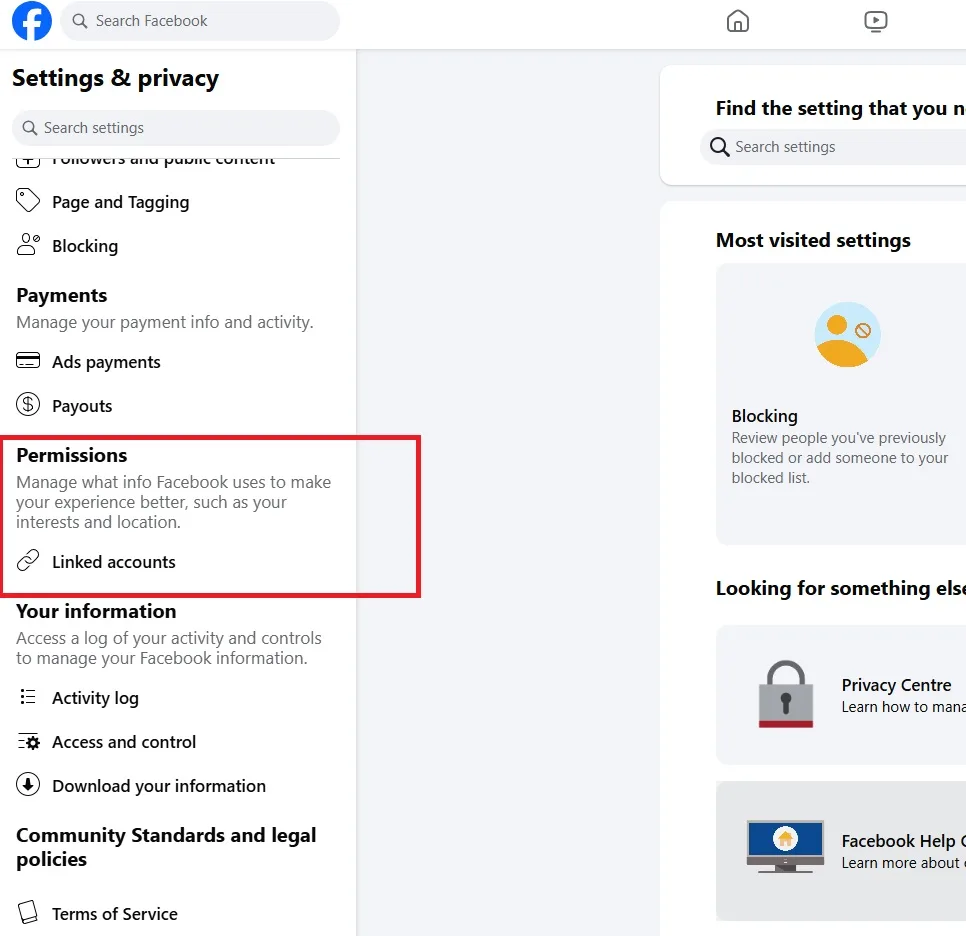
Permissions → Linked accounts. - 3
Connect the Instagram account
Choose Instagram and press Connect account. A secure Meta window asks for the Instagram login — use the business account's own username and password, which is why different logins are fine. Approve it, enter any emailed or texted code, and the two are linked. - 4
Alternative: Meta Business Suite
The same link can be made at business.facebook.com → Settings → Linked accounts → Instagram. If the Facebook route above looks different on your screen, this one is worth trying — Facebook changes its settings layout fairly often, and Business Suite is more stable.
Part 3 — Connect it to Evolamate
- 1
Open Channels
In Evolamate, open Channels. Facebook and Instagram connect together — one setup covers both. Follow the connection guide from there. - 2
If Facebook shows a "Continue as…" dialog
Choose "Edit settings", not Continue. Edit settings is where you pick which Page — and its Instagram account — to grant. Continue silently reuses whatever you chose last time, which is the single most common reason a connection ends up pointing at the wrong Page. - 3
You're done
The Channels cards read "Connected as [your Page]" and your Instagram handle. Approved posts now publish to both automatically at their scheduled time, and comments and messages start arriving in your Evolamate Inbox. You can disconnect either one at any time from the same page.
If something goes wrong
- "No Instagram business account is linked" — the account is still Personal, or it's linked to your personal profile instead of the Page. Redo Part 1, then Part 2 while switched into the Page.
- Linked accounts isn't where the screenshot shows — Facebook moves these settings around. Use Meta Business Suite (Part 2, step 4), or search "linked" in the settings search box at the top.
- Connected the wrong Page — press Connect again and choose Edit settings to change the selection. Nothing is lost.
- "Published by Evolamate" appears on your posts — only Page admins can see that label. Your audience never does.
- You'd rather not do any of this — you don't have to. Approved Instagram posts appear in your Planner as ready-to-post packs: the designed image, the caption written for Instagram, one tap to copy.
Stuck? Contact support and a real person will help you through it.